How Mouse Sensitivity Conversion Works Across FPS Games
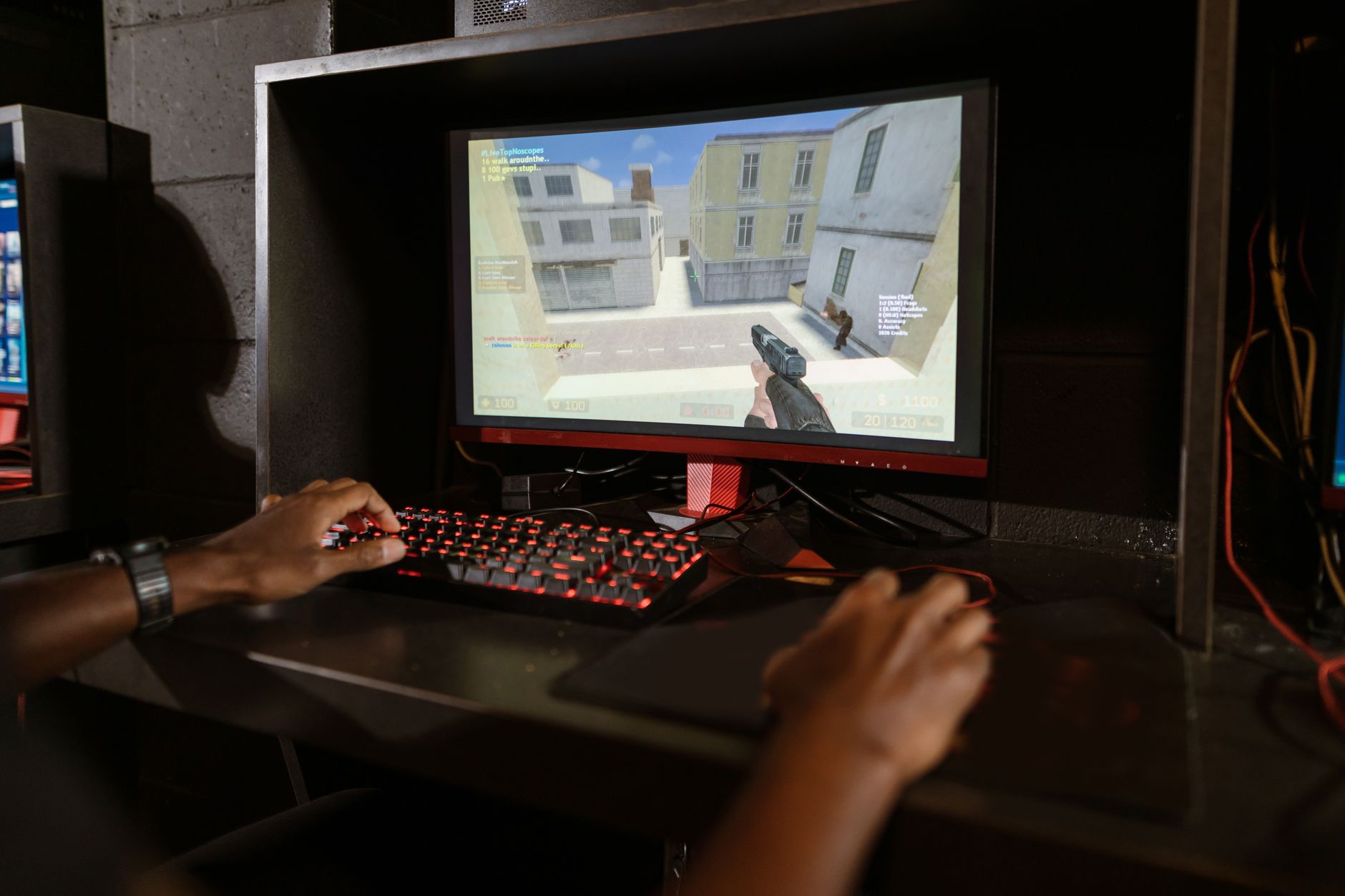
Mouse sensitivity conversion works by preserving the physical result of your mouse movement. A good converter does not assume that the same sensitivity number means the same thing in every game. It works out how far your mouse moves for a full turn, then finds the target game's value that produces a similar distance.
The most useful target is cm/360: the centimeters your mouse travels for one 360-degree turn. If your source game is 36 cm/360, the converter tries to make the target game land at 36 cm/360 too.
Start with the mouse sensitivity conversion guide if you want the whole process in one place. This article pairs well with what cm/360 means, eDPI vs cm/360, what yaw means, and game-specific walkthroughs like Valorant to CS2 sensitivity.
TL;DR
- Conversion preserves physical turn distance, not the visible settings number.
- cm/360 is the cleanest baseline for cross-game comparison.
- eDPI helps inside one game family, but it is not universal.
- Yaw, raw input, acceleration, FOV, ADS, and slider rounding can affect feel.
Step 1: Start With the Source Setup
The source setup is the game and settings you already trust. You need the source game, mouse DPI, in-game sensitivity, and sometimes the game's rotation scale. Without those details, a converter is guessing.
Write down:
- Source game.
- Mouse DPI.
- In-game sensitivity.
- ADS or scoped sensitivity, if you are converting that separately.
- Any raw input or acceleration settings.
This is where eDPI can help as a note, but not as the whole answer. eDPI = mouse DPI x in-game sensitivity. If you use 800 DPI and 0.5 sensitivity, your eDPI is 400. That is useful inside one game family, but it does not tell you the physical turn distance by itself.
The most common conversion mistake is starting with a remembered setting but not the matching DPI. A sensitivity value without DPI is only half of the input story. If the DPI changed later, the old sensitivity number may no longer describe the same hand movement.
Step 2: Convert the Source Setting to cm/360
The converter next estimates the source cm/360. In plain English, it asks how far the mouse moves before the camera rotates one full turn. This turns the source setting into a physical target.
Why does this step matter? Because different games can use different scales. One game's 1.0 may not equal another game's 1.0. cm/360 avoids that trap by measuring the end result.
In 2026, the Steam Hardware & Software Survey for June 2026 reports Windows at 94.10% among participating Steam users and Windows 11 64-bit at 70.44% among Windows users (Valve, Steam Hardware & Software Survey June 2026, 2026). That is useful context for PC FPS conversion because many players are tuning settings on Windows machines where mouse DPI, raw input, and game options can all matter.
A sensitivity converter first turns the source setting into a physical measure such as cm/360. That step avoids comparing raw game sensitivity numbers directly, which can be misleading because each game may interpret its slider values differently.
Step 3: Account for the Target Game Scale
The target game may use a different sensitivity scale, yaw value, or slider range. The converter uses the target game's known behavior to find the in-game value that should match your source cm/360.
This is the heart of conversion:
source setting -> source cm/360 -> target setting
The converter is not copying the number. It is translating the physical outcome. That is why a source value of 0.7 might become 2.2 in another game, or the other way around.
Yaw often appears in the math. In practical terms, yaw describes how much horizontal rotation the game applies from mouse input, usually discussed as degrees per input count or degrees per sensitivity unit depending on context. Do not treat unverified yaw tables as fact. If a game has not been verified, the converter should say so.
For more on that caveat, read what is yaw in mouse sensitivity.
Step 4: Adjust for DPI Changes When Needed
DPI changes are simpler when the game scales linearly. If you only change mouse DPI and want the same effective input in the same game, use this formula:
new sensitivity = old DPI x old sensitivity / new DPI
Example:
old DPI = 800
old sensitivity = 0.5
new DPI = 1600
new sensitivity = 800 x 0.5 / 1600
new sensitivity = 0.25
The new sensitivity is lower because the mouse now reports more counts per inch. You reduce the in-game value to keep the same effective movement.
This formula is not the same as a full game-to-game conversion. It is a DPI adjustment inside a linear sensitivity setup. For the detailed process, use how to convert sensitivity when changing DPI.
Step 5: Check Input Options and Acceleration
Input options can make a correct conversion feel wrong. Raw input, operating-system acceleration, pointer settings, and the game's input path can change how mouse movement reaches the camera.
Step 6: Test the Result Physically
The final step is physical verification. Load the target game, face a fixed object, move the mouse across a measured distance, and check whether one full turn matches the expected cm/360.
Use this quick test:
- Mark a start point on your mousepad.
- Aim at a fixed point in game.
- Move the mouse horizontally until the view returns to the same point.
- Measure the travel distance.
- Repeat two or three times.
If the measured distance is close, the conversion is doing its job. If it is far off, check DPI, raw input, sensitivity rounding, and whether the target game uses the expected settings mode.
Manual measurement is not a replacement for a converter. It is a sanity check. The converter gives you the target value. The ruler tells you whether your real setup produced the expected physical result.
Why Converted Sensitivity Can Still Feel Different
Converted sensitivity can feel different because 360 distance is not the entire aiming experience. FOV changes perceived speed. ADS and scoped multipliers can alter smaller movements. Some games use different vertical and horizontal behavior. Menus, vehicles, and mounted weapons may have separate settings.
That does not make conversion useless. It means conversion has a defined scope. A hip-fire cm/360 match gives you a reliable baseline. After that, you may need ADS matching, monitor-distance matching, or game-specific tuning.
The safest expectation is: conversion can preserve your full-turn distance, but it cannot force every game to feel identical in every camera state.
Frequently Asked Questions
How does a sensitivity converter work?
It estimates the source game's physical turn distance, then finds the target game's sensitivity value that gives the same distance.
Why do games need different sensitivity numbers?
Different games can use different sensitivity scales, yaw assumptions, slider ranges, and input handling.
What is the best baseline for conversion?
cm/360 is usually the best baseline because it measures physical mouse distance for one full turn.
Why can't I copy the same sensitivity number?
You usually cannot copy the same number because games use different sensitivity scales. A value of 1.0 may rotate the camera differently in each game. Convert the physical result instead of the label.
Does eDPI convert between games?
No. eDPI is best for comparing settings inside one game family. It is calculated as mouse DPI x in-game sensitivity, but it does not include the target game's rotation scale.
What should I do if the conversion feels off?
Check your DPI, raw input setting, acceleration, FOV, ADS multiplier, and slider rounding. Then measure your cm/360 manually. If the physical distance matches, the remaining difference is probably not the basic hip-fire conversion.